Integration: Tickets-and-Pay

Sell tickets on WhatsApp. Scan them at the door.

Your customers buy tickets in the chat or on your own event page, pick their seats or a table, and pay online. The money goes straight into your own Stripe or PayPal account, every ticket is a QR code on their phone, and your team checks people in with their own phones.

1 minute 38 seconds, with subtitles.

No fee per ticket from app2email. Stripe or PayPal charge their usual fees.

What your customer sees, step by step

Every screen below is what a buyer sees with the standard settings. Under each one: what you can set to make it your own.

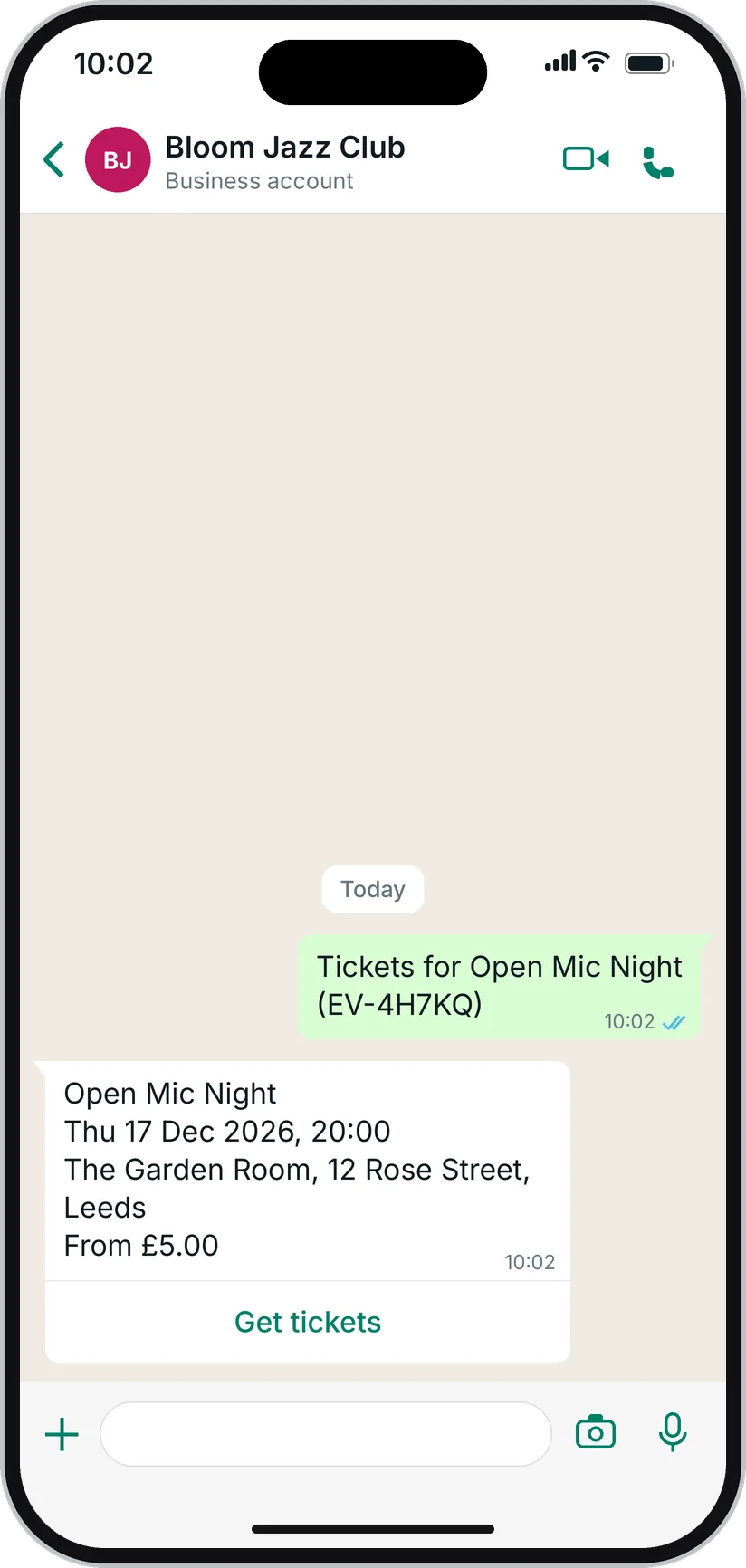
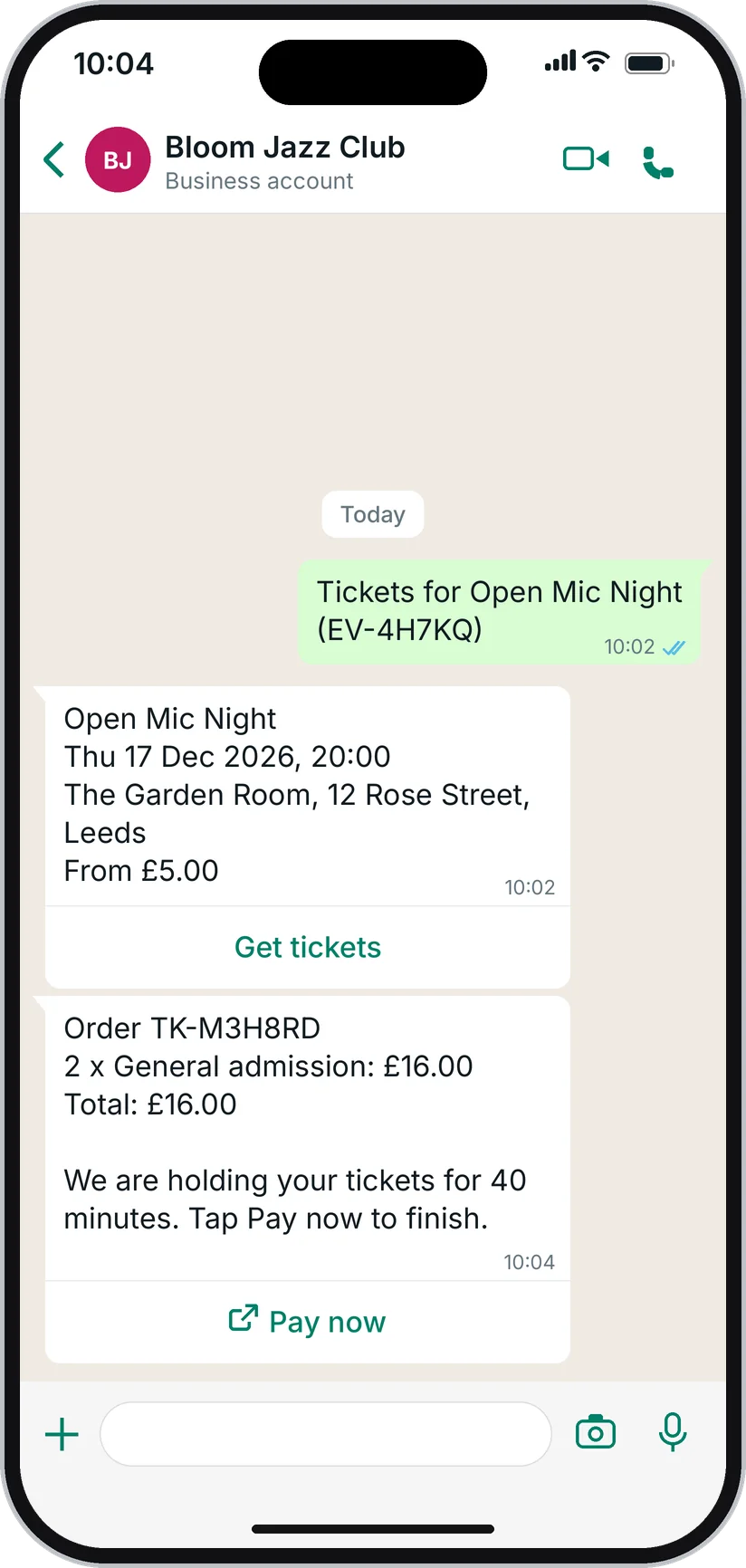
  1. WhatsApp chat: the customer asks for tickets and gets the event with a Get tickets button

    Step 1 of 11 - In the chat

    They message you on WhatsApp

    A poster QR code or a link opens your WhatsApp chat with the message already written. Or they simply write "tickets". The reply arrives straight away with the event, the date, the place, the price and a Get tickets button.

    You set

    • The words that bring up your events (tickets, events... in your words)
    • The reply text and the button label
    • A link and a poster QR code for every event, ready in the Share window
    • Which events are listed, and which open only from their own link
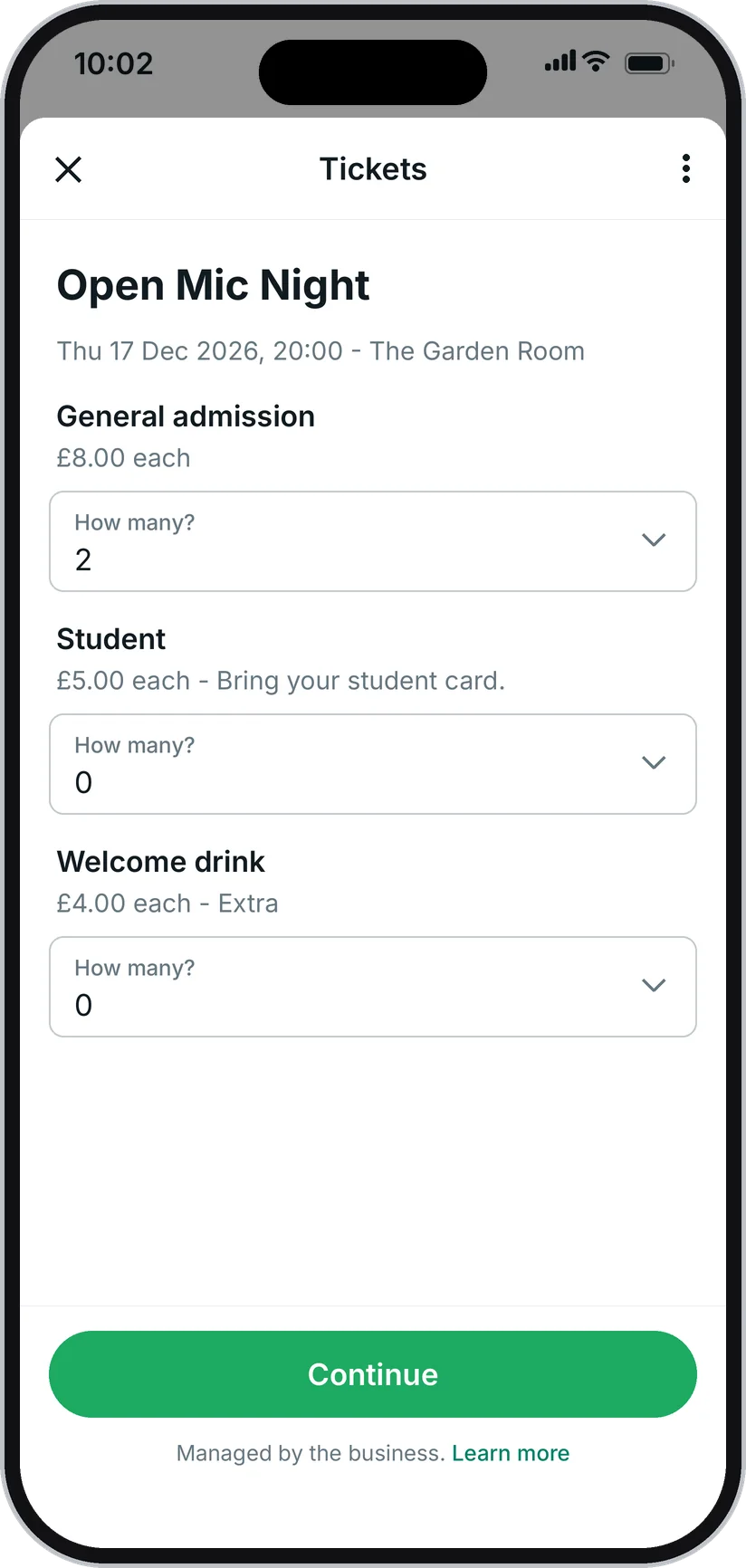
  2. Tickets form inside WhatsApp: ticket types with prices and a number for each

    Step 2 of 11 - In the chat

    Choose tickets

    A tickets form opens inside WhatsApp. Every ticket type shows its full price, and extras such as parking or a drink can be added. Nothing to download, no website, no sign-up.

    You set

    • Ticket types: paid, free, pay-what-you-want, group tickets that admit several people
    • Extras with their own stock
    • Early-bird dates, and a next price that opens when the first sells out
    • How many tickets are on sale, for each type and each date
    • The most tickets in one order (10 unless you change it)
    • Promo codes, and hidden tickets that open with a code
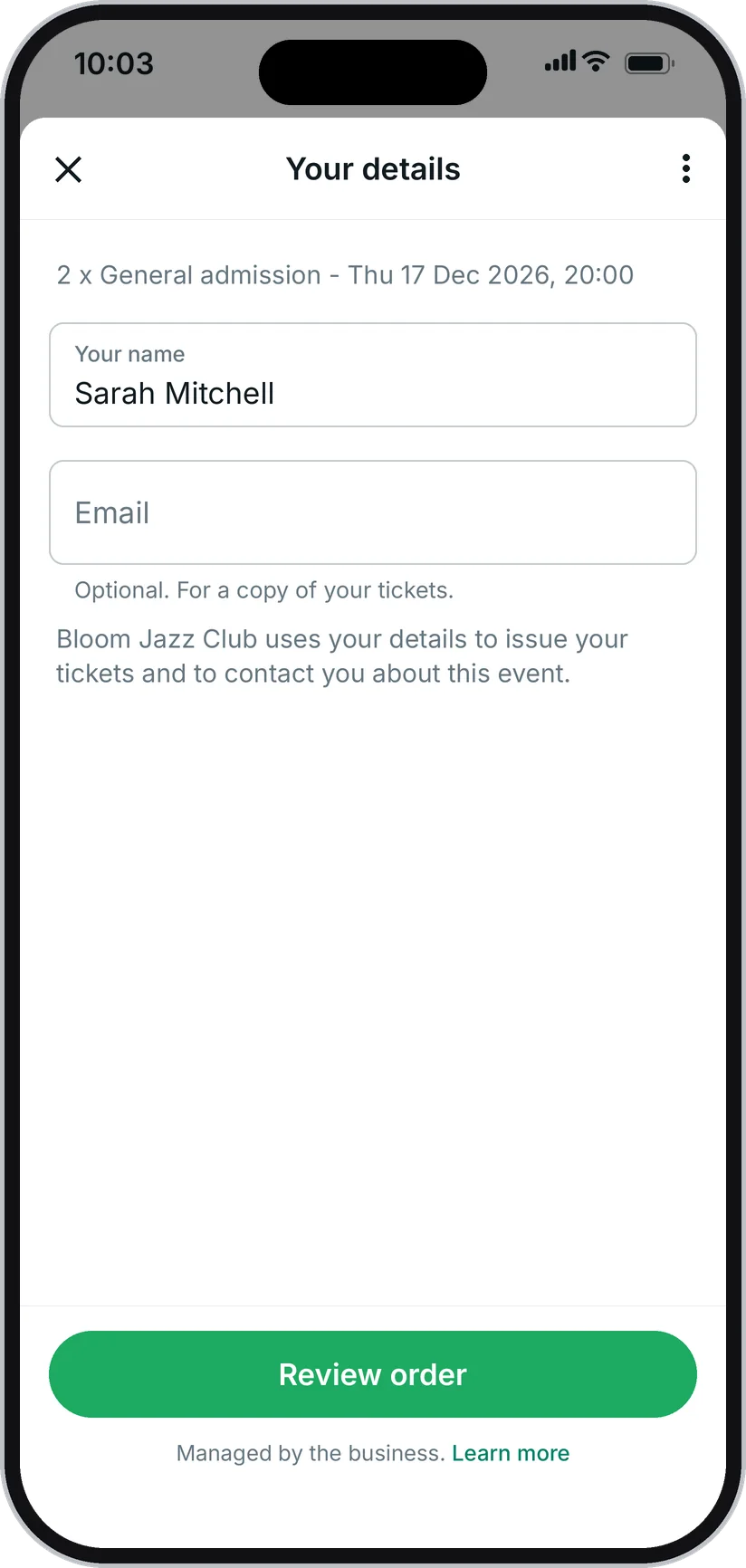
  3. Tickets form: the name is already filled in from the WhatsApp profile

    Step 3 of 11 - In the chat

    Their details

    Their name is already filled in from their WhatsApp profile, and the tickets go to the number they are writing from. Usually they just tap Review order.

    You set

    • An email address, optional or required: a copy of the tickets goes there
    • A name on every ticket, or the buyer's name on all
    • An age confirmation for 18+ and 21+ events
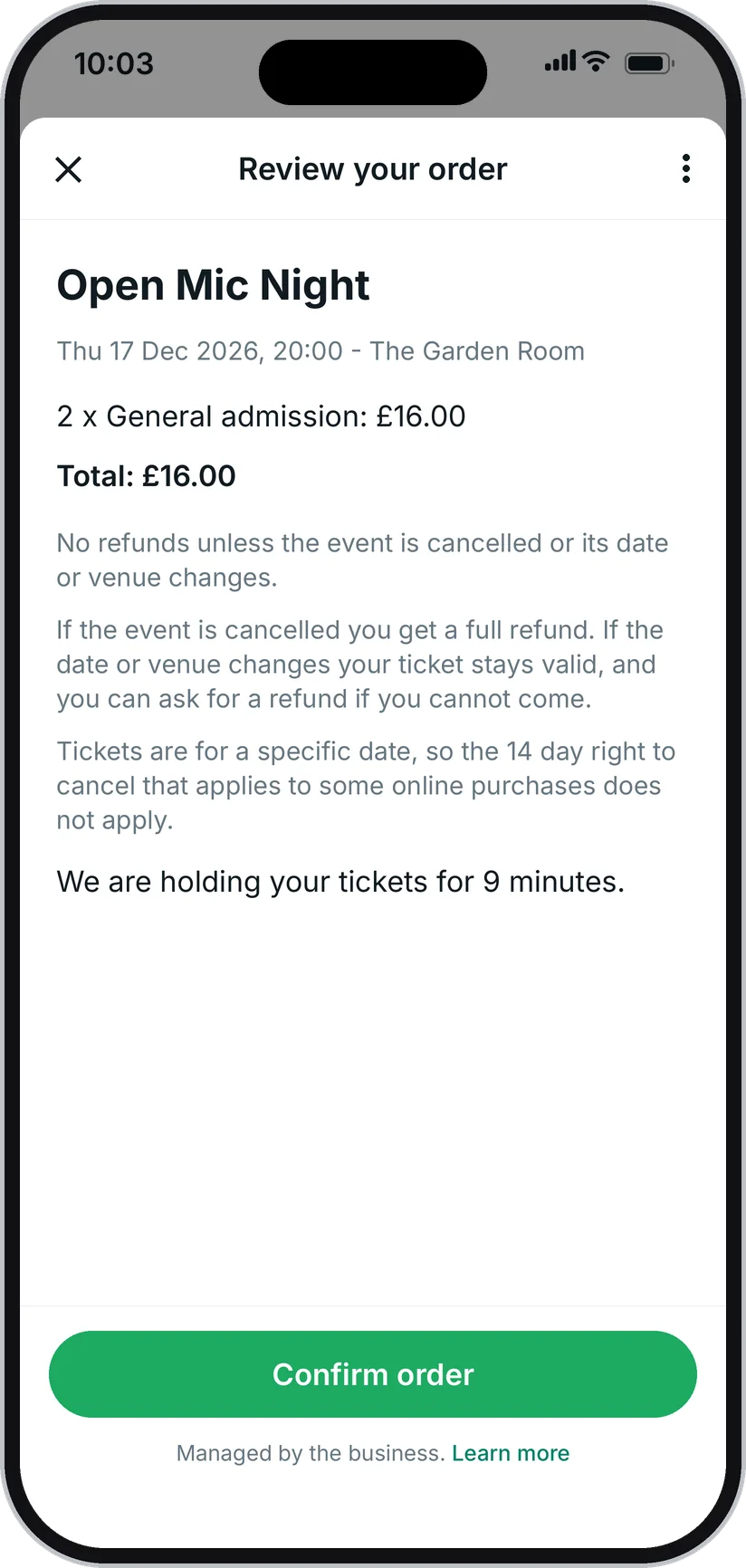
  4. Tickets form: the order, the total, the refund policy and a Confirm order button

    Step 4 of 11 - In the chat

    Check the order

    Every line, the total, your refund policy in one sentence, and how long the tickets are held. One tap on Confirm order.

    You set

    • Your refund policy: no refunds, refunds until some days before, or your own words
    • A booking fee per ticket or per order, inside the price or shown as its own line
    • A tax line such as "Includes VAT at 20%"
    • How long tickets are held while a buyer decides: 5 to 30 minutes
  5. WhatsApp chat: the order summary with a Pay now button

    Step 5 of 11 - In the chat

    Pay online

    A Pay now button arrives in the chat. It opens their own payment page; they pay by card or with PayPal on Stripe's or PayPal's secure page, and the money goes straight into your own account. A payment that arrives late still gets its tickets if they are still available, or is refunded automatically. Free tickets skip this step.

    You set

    • Stripe, PayPal or both: the accounts you connected
    • The currency of each event
    • Apple Pay and Google Pay show on Stripe's page when they are switched on in your Stripe account
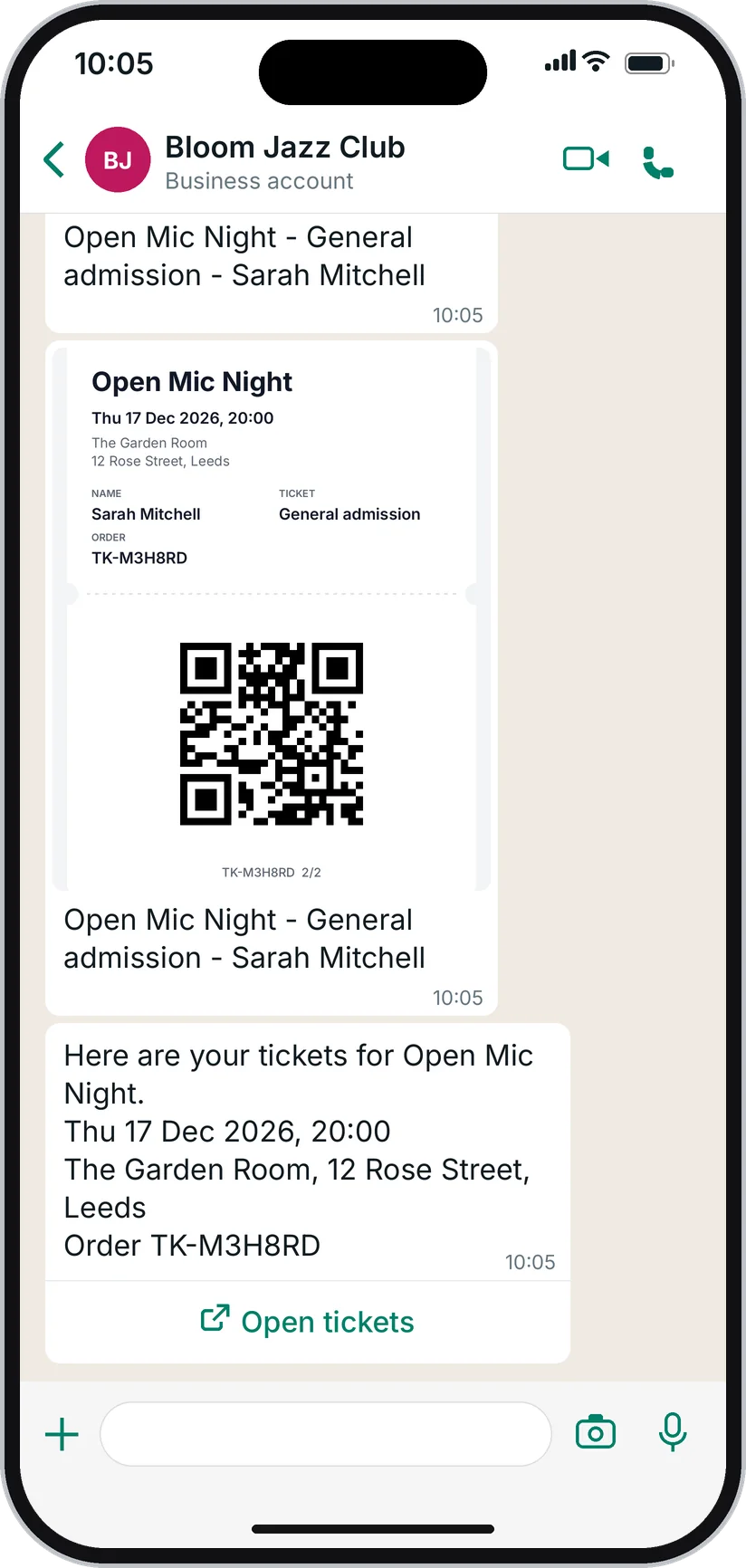
  6. WhatsApp chat: two tickets as pictures with QR codes and an Open tickets button

    Step 6 of 11 - In the chat

    Tickets in the chat, at once

    The moment the payment is confirmed, each ticket arrives in the chat as a picture with its QR code, followed by an Open tickets button. An order of more than four tickets gets one summary picture and the button.

    You set

    • The ticket design: three layouts, your colours, logo, a picture, three fonts
    • What is printed: name, seat, ticket type, order number, venue, doors time, price, a footer line
    • The words of the message
    • A PDF of the tickets in the chat as well
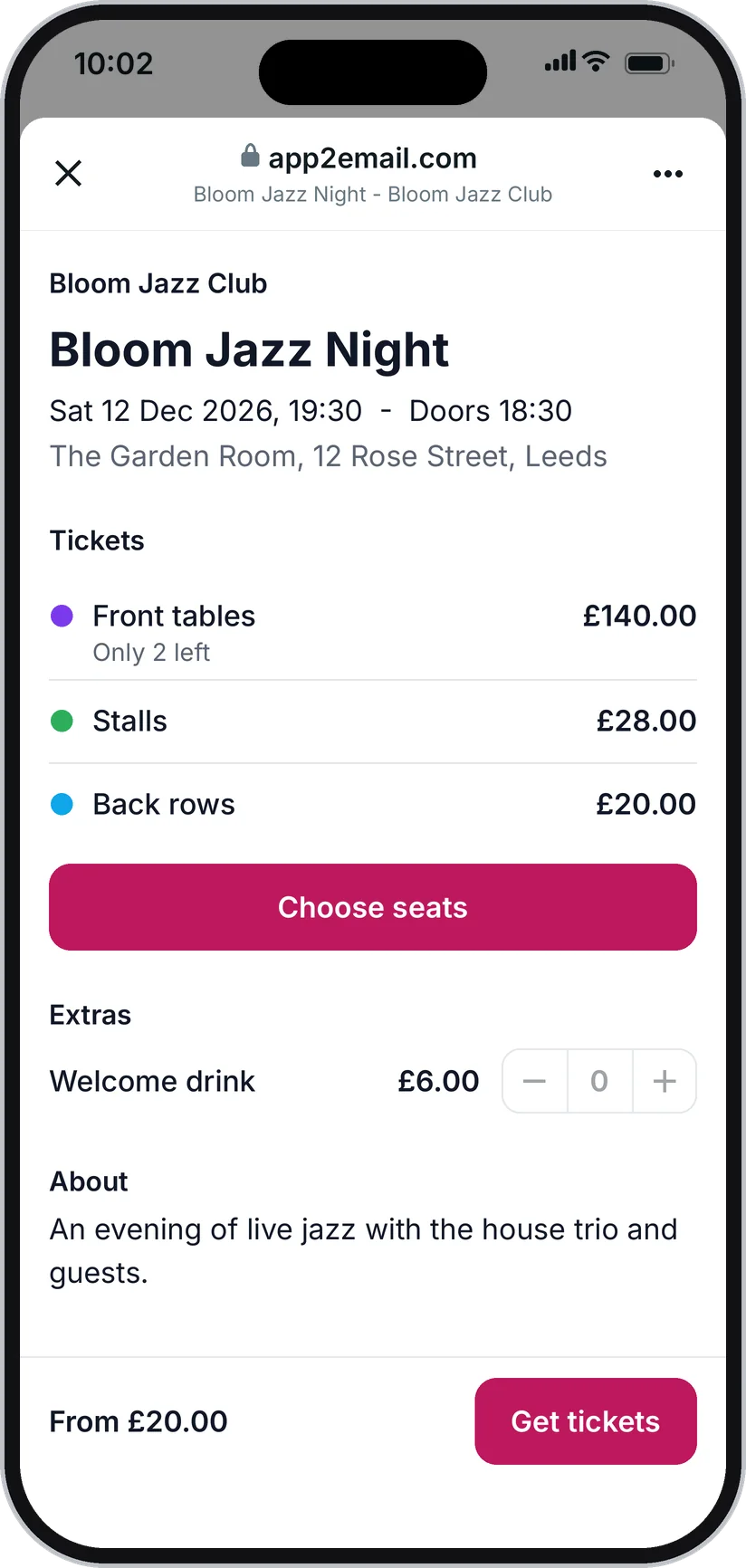
  7. Event page: Bloom Jazz Night with its prices and a Choose seats button

    Step 7 of 11 - With a seat plan

    Your event page

    For an event with a seat plan, Get tickets opens your event page: the event, the prices and the plan, in your colours. The same page is the link for your website, Instagram or emails, with no chat needed.

    You set

    • Name, description, up to 5 pictures, venue with a map link, doors time, age guidance, accessibility information
    • Your logo, colour and background
    • One date, a run of dates, or time slots through the day
    • When sales open and close
    • Listed for everyone, or reached by its link only
    • The page inside your own website
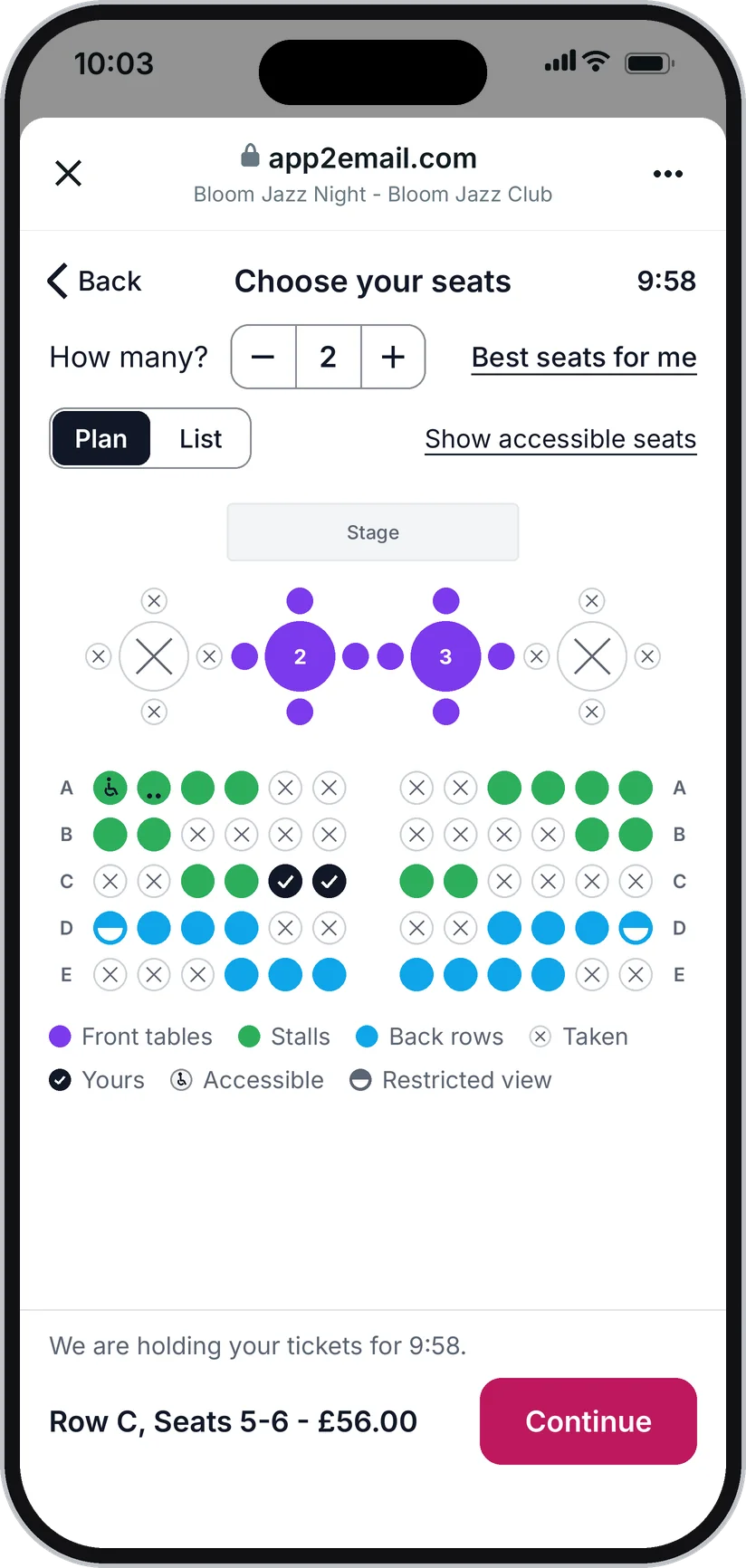
  8. Seat plan: tables and rows, two seats chosen, others already taken

    Step 8 of 11 - With a seat plan

    Pick seats or a table

    They tap a seat and it is held for them at once. For two people, the two seats side by side are taken with one tap. Seats that someone else takes are crossed out within seconds. "Best seats for me" chooses for them, and a list view works with a keyboard and a screen reader.

    You set

    • Your plan: rows, round and long tables, booths, standing areas, started from a ready layout
    • Price categories in colours
    • Tables and booths sold whole or by the seat
    • Wheelchair spaces, companion seats, restricted-view seats
    • Seats you keep back for guests or the door
    • No single empty seat left behind (on unless you switch it off)
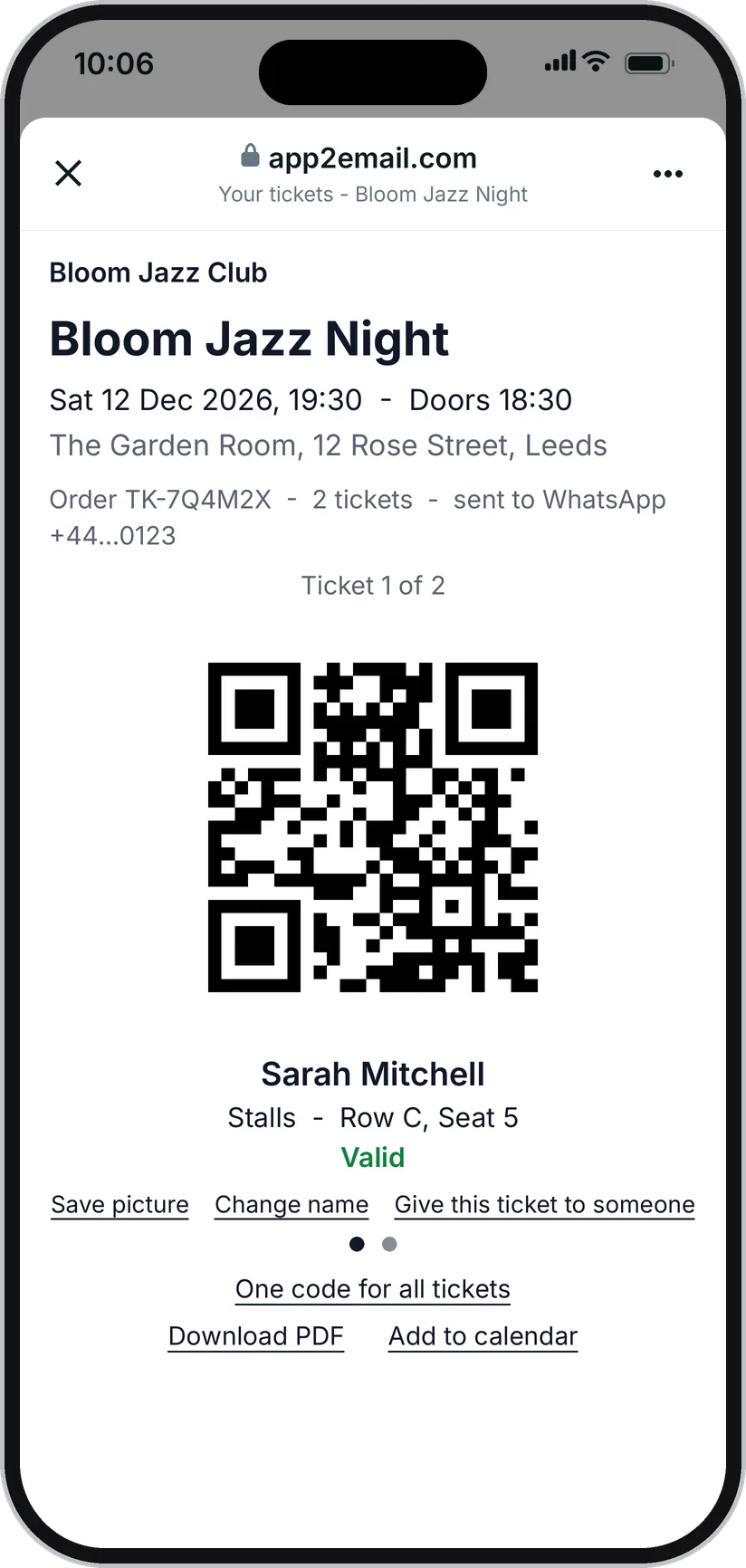
  9. Ticket page: a QR code with the name, the seat and the word Valid

    Step 9 of 11 - The ticket

    The ticket page

    After paying, the page they are on becomes their tickets: one QR code for each, full screen with a tap. From here they save a ticket as a picture, download a PDF, add the event to their calendar, change the name on a ticket or give a ticket to a friend. A ticket that is given away gets a new code, and the old one stops working.

    You set

    • Whether holders may change names and pass tickets on
    • A refund request button, when your policy allows refunds
    • Short updates for ticket holders ("Car park is full, use North Road")
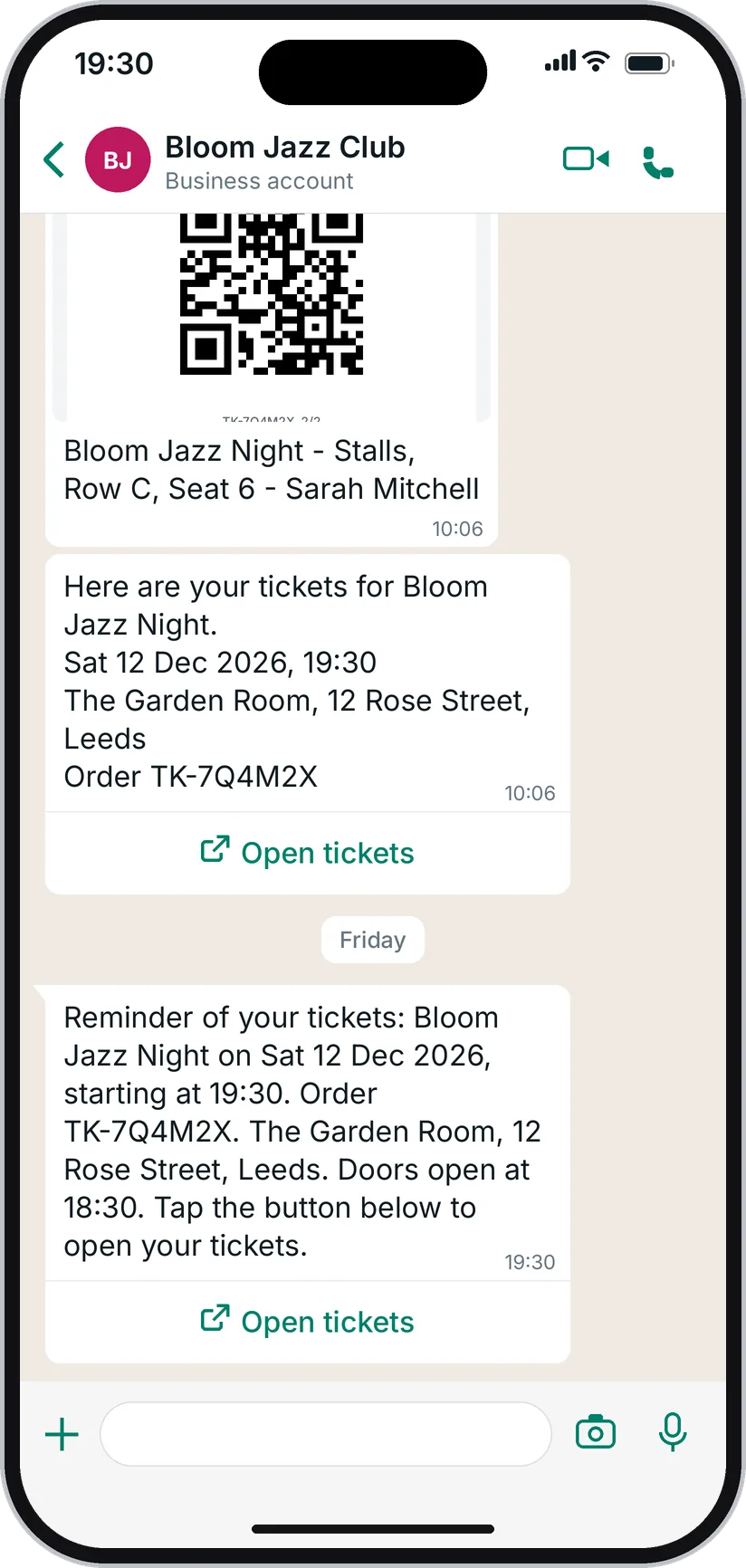
  10. WhatsApp chat: a reminder the day before with an Open tickets button

    Step 10 of 11 - The ticket

    A reminder before the event

    The day before, or when you choose, a reminder arrives on WhatsApp (a message template, charged by Meta) with the time, the place, when doors open and the ticket button. With an email address on the order, the same reminder goes by email.

    You set

    • Up to two reminders: a week, two days, a day or three hours before
    • A note of your own ("Bring a coat")
    • A map pin of the venue with the reminder
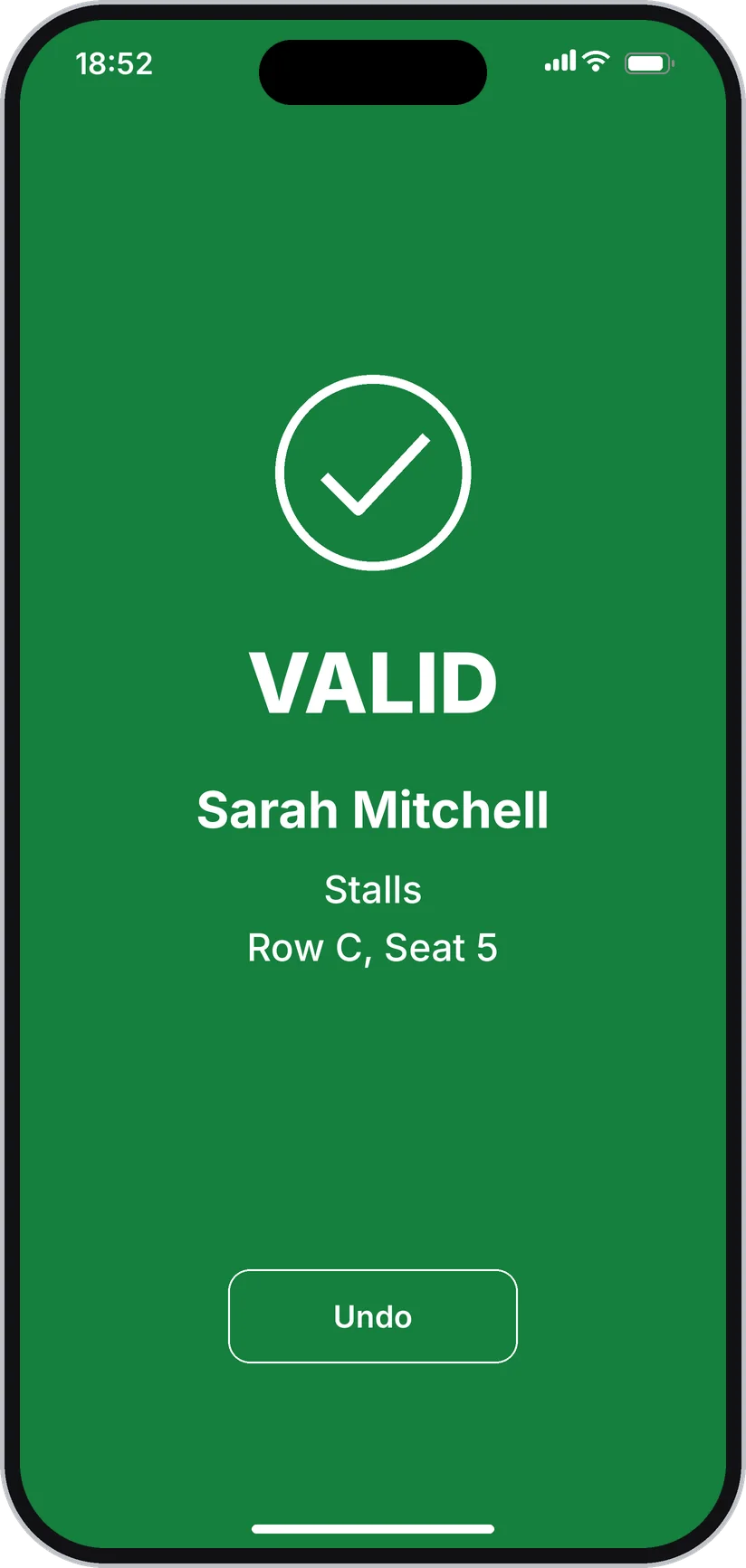
  11. Door app: a green screen with the word Valid, the name and the seat

    Step 11 of 11 - At the door

    Scanned at the door

    An usher points a phone at the code. Green means come in, with the name, the ticket type and the seat. A second scan of the same ticket turns amber and shows when it was used, at which door and who let them in.

    You set

    • When check-in opens (two hours before the start unless you change it)
    • Re-entry: not allowed, scan out and in again, or free
    • Several doors, and which tickets each door accepts
    • A note for the usher on a ticket type ("Check student card")

The pictures show an example organiser. WhatsApp draws the form in its own style, so it looks a little different on each phone.

On your side

What you see while your customers buy and arrive.

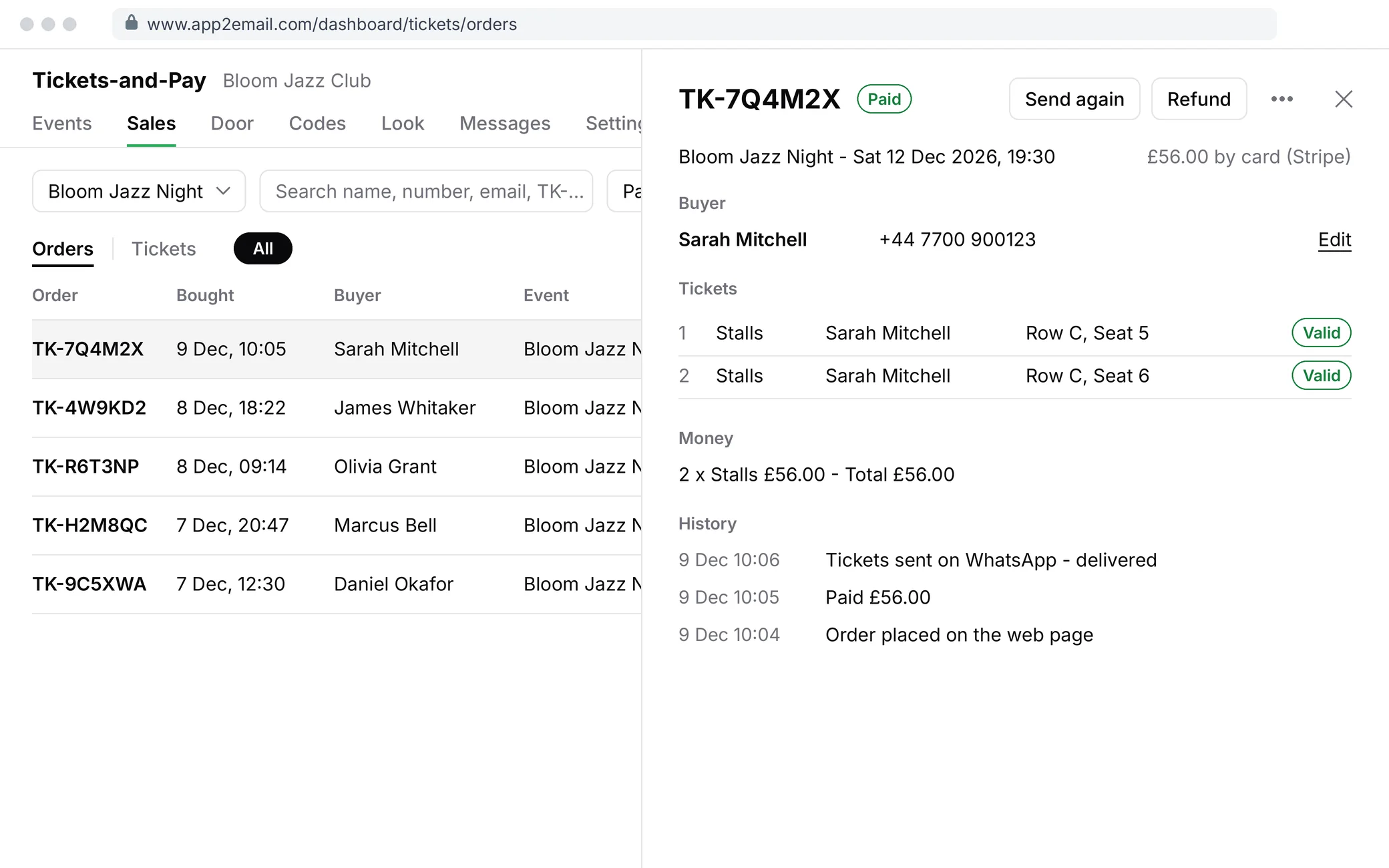
Your dashboard

Create an event with a name, a date and a price, and it is ready to publish. Everything else has a sensible default and appears when you need it. See tickets sold and money taken for each event and date, every order with the messages it was sent, and every attendee with seat and check-in time. Export orders, attendees and a printable door list.

Dashboard: the list of orders, and one order open with its buyer, tickets, payment and messages

The seat designer

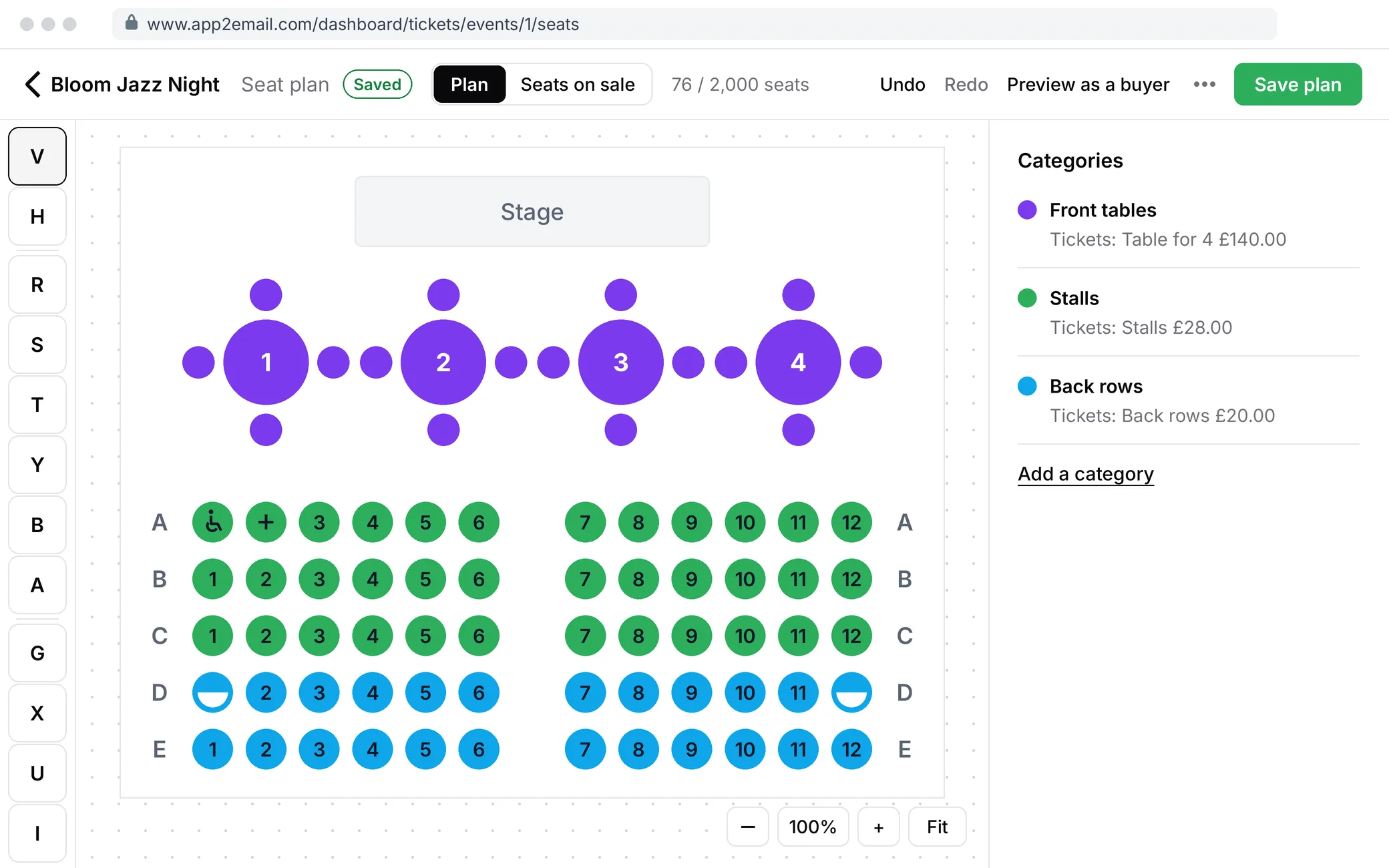
Start from a layout such as a theatre, cabaret tables, banquet rounds, a coach or restaurant tables, answer two or three numbers and the plan is drawn. Then move, curve, relabel and colour it. One plan serves every date of the event.

Seat designer: a stage, four round tables and five rows of seats in three price colours, with the list of categories

Live status

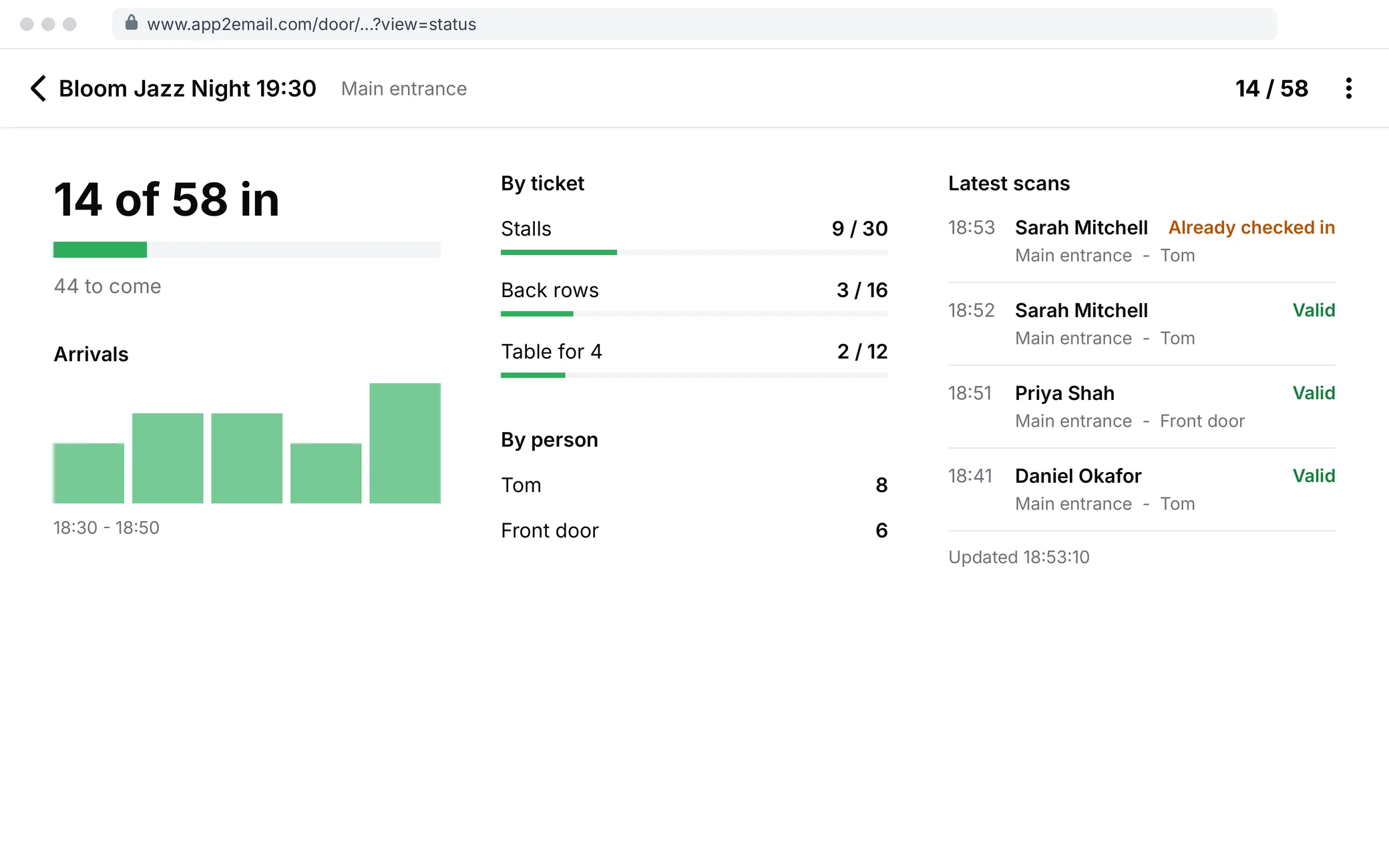
While people arrive you see how many are in, by ticket type, by door and by usher, and every scan with its result. One order code checks in a whole group together.

Live status: 14 of 58 people in, by ticket type and by usher, with the latest scans and who made them

The pictures show an example organiser.

The door app

Ushers open a link on their own phone and type a PIN: no app to install and no account. Or invite your door team by email with their own logins for the door app. They scan with the camera or a handheld scanner, type a code, or search by name. Ushers never see phone numbers, email addresses or money.

Your money

Payments go into your own Stripe or PayPal account, in your currency. app2email takes no fee per ticket. Refund a whole order or single tickets from the dashboard; refunded tickets stop working at once. If you cancel an event you can refund everyone in one step.

Sold by you, too

Add complimentary tickets and cash or bank-transfer orders yourself, and sell at the door from the door app. A waiting list collects people when a date is sold out.

Make it yours

Buyers see your name, your words and your colours.

Your ticket

Three layouts, your colours, your logo, a picture, three fonts, and a choice of what is printed. The preview is drawn by the same code that makes the real ticket.

Your pages

Logo, brand colour and background on the event page and the ticket page. An event can have its own colour.

Your words

Every sentence a buyer reads has a default you can change: the chat replies, the refund line, the reminder.

Your links

A link for every event, a poster QR code, and a link that opens your WhatsApp chat on one event.

On your own website

Put one event or your whole list inside your website with a short snippet.

Your rules

Refund policy, terms, age guidance, limits per order and per buyer, sales dates.

Your questions

Up to 10 questions per order or per ticket: dietary needs, team name, pick-up point.

Only your brand

Remove the small "Powered by app2email" line.

Draw your room in a minute

Pick a starting layout and change the numbers. In your dashboard the plan then opens in the designer, where every seat, table and label can be changed.

Layout

Rows

8

Seats in a row

12

96 seats

Try it yourself

A working example with made-up data. Nothing is sold, paid, sent or scanned.

www.app2email.com/events/bloom-jazz/bloom-jazz-night
Bloom Jazz Club

Bloom Jazz Night

Sat 28 Nov 2026, 19:30 - Doors 18:30

The Garden Room, 12 Rose Street, Leeds

Entrance on Rose Street

Tickets

  • Front tables Only 2 left £140.00
  • Stalls £28.00
  • Back rows £20.00

Extras

  • Welcome drink

    A glass of house wine or a soft drink, served at your seat.

    £6.00

    0

About

The house trio plays two sets, with guest singers after the break.

Front tables seat four and are sold whole. Stalls and back rows are single seats. The bar is open from 18:30.

Accessibility

Step-free entrance on Rose Street. Row A has a wheelchair space with a companion seat beside it.

Good to know

No refunds unless the event is cancelled or its date or venue changes.

If the event is cancelled you get a full refund. If the date or venue changes your ticket stays valid, and you can ask for a refund if you cannot come.

You can pass a ticket to someone else free of charge from your ticket page. Tickets may not be resold for more than the price paid.

Bloom Jazz Club

Example only: on the real page the buyer pays on the Stripe or PayPal page, then comes back to the ticket page.

Be the buyer, then the usher

These are the real event page, ticket page and door page of Tickets-and-Pay, running on an example event.

  1. Buy tickets: choose seats or a table on the plan, type any name and press Pay. Seats that other buyers take change while you watch.
  2. The ticket: your tickets with their codes. Tap a code to make it full screen, or give a ticket to someone.
  3. At the door: tap a sample code to scan it. Try the same one twice.
Brand colour
Background

In your dashboard these settings are under Tickets-and-Pay, Look. The ticket itself has its own design settings there, with a live preview.

Made for events of every size and kind

The same building blocks cover very different events.

Theatre and school plays

A run of dates on one seat plan, concession prices, house seats kept back, cash sales at the office.

Comedy and music nights

Early and late shows, cabaret tables by the seat, an ID note for the door at 18+ events.

Gala dinners and fundraisers

Whole tables and single seats, a meal choice for each guest, names added later, a donation at checkout.

Workshops and classes

A small number of places, a waiting list, questions for each attendee, a reminder with your note.

Museums and timed entry

Time slots through the day with places per slot, family tickets, check-in around each slot.

Tours, boats and coaches

Departures as dates, a meeting point with a map pin, a pick-up question, numbered coach seats.

Quiz nights

One table is one team: sell tables whole and ask for the team name.

Community and church events

Free tickets, pay-what-you-want, pay on the door, a printed door list.

Tastings and supper clubs

Link-only events, the address shown only to ticket holders, an age confirmation.

Conferences

Early-bird prices, speaker and sponsor tickets opened by a code, workshops as extras, exports and an API.

Markets and fairs

Pitches on a plan, each sold whole, with questions for traders.

Online events

A join link on the ticket page instead of a QR code, a reminder and a calendar entry.

Questions

What does it cost?

Tickets-and-Pay is part of your app2email plan. app2email takes no fee per ticket and no share of your sales. Stripe or PayPal charge their usual fees on each payment.

Where does the money go?

Straight into your own Stripe or PayPal account. It never passes through app2email. Refunds go back the same way, from your dashboard.

Do my customers need an app or an account?

No. They need WhatsApp or a web browser. There is nothing to install and no password. A buyer who does not use WhatsApp gives an email address instead and gets the tickets by email.

Do my ushers need an app?

No. The door app is a web page. You give each usher or each door a link and a PIN that work for one date, or you invite team members by email. Scanning uses the phone's camera in the browser.

What if the venue has a poor signal?

The door page keeps the list of tickets while it is open, so a scan is still checked when the connection drops and is sent when it is back. It is a safety net, not a way to work without a connection all evening: the page must be opened with a connection first, and two phones without a connection cannot see each other's scans.

Can a ticket be copied or used twice?

Every ticket has its own code and the first scan wins. A second scan shows when, at which door and by whom the ticket was used. A ticket that was refunded, cancelled or passed on is refused.

Apple Wallet and Google Wallet?

Not yet. The tickets are built for both wallets, and the "Add to wallet" buttons will appear on the ticket page once app2email's wallet accounts with Apple and Google are in place. Until then buyers use the ticket page, the picture in the chat or the PDF: all three carry the same QR code and scan the same way.

Can I sell seats and standing tickets for the same event?

Yes. A plan can hold rows, tables, booths and standing areas together, and ticket types without a seat are sold beside the plan.

How big can an event be?

A seat plan holds up to 2,000 seats. An event can have up to 40 ticket types and 400 coming dates.

Can I use it together with Book-and-Pay?

Yes. One WhatsApp number can take appointments and sell tickets. Each has its own words in the chat and its own section in your dashboard, and both use the Stripe or PayPal account you connected.

What about refunds and cancelled events?

You refund a whole order or single tickets from the dashboard, and refunded tickets stop working at once. If you cancel an event or one of its dates, the ticket holders are told and you can refund everyone in one step. Each order keeps the refund policy its buyer saw.

Do WhatsApp messages cost extra?

Messages count towards the monthly messages of your app2email plan, and Meta bills its own WhatsApp charges to your WhatsApp Business account. Messages sent more than 24 hours after a buyer last wrote, such as a reminder, or the tickets of a buyer who bought on your event page without writing to you, use message templates that Meta approves first. Meta delivers these messages only when your WhatsApp Business account has a payment method, and each one is charged by Meta. The ticket page, and the email copy when the buyer gave an address, do not depend on either.

Set up Tickets-and-Pay

Connect your WhatsApp number and your Stripe or PayPal account, create an event with a name, a date and a price, and publish it. In your dashboard it is under Integrations, Tickets-and-Pay.

Taking appointments too? See Book-and-Pay